
June 4, 2026
Screen Sharing Business Software: A Practical Buying and Workflow Guide for SaaS Teams
Screen sharing business software is not just a meeting feature. This guide shows how SaaS teams should evaluate collaboration workflows, security, support, reliability, and rollout.
Screen sharing business software looks simple until it becomes part of daily operations. A sales rep shares a demo and the browser freezes. Support asks a customer to show the issue, but remote control is blocked. Finance joins a vendor call and someone accidentally exposes a password manager. Engineering tries to debug a production issue and the recording is impossible to find later.
Teams think the problem is choosing the tool with the cleanest screen share button. The real problem is building a repeatable collaboration workflow that works across sales, support, onboarding, engineering, customer success, and management.
That changes the conversation. The practical question is not whether a tool can share a screen. Most can. The practical question is whether the software can handle the state, permissions, handoffs, security expectations, and follow-up work that happen around the shared screen.
This guide treats screen sharing business software as workflow infrastructure, not a meeting accessory. If your team is comparing SaaS collaboration tools in 2026, this is the lens that prevents expensive tool sprawl and awkward workarounds.
Table of contents
- Screen sharing business software is a workflow decision
- Map the jobs before comparing tools
- The architecture behind a reliable screen sharing workflow
- Security expectations for screen sharing business software
- What breaks when implementation is sloppy
- How to evaluate screen sharing business software
- Implementation workflow for small business teams
- Integrations, recordings, and knowledge capture
- What works and what fails in production
- Choosing and improving your software stack in 2026
Screen sharing business software is a workflow decision
The feature is not the system
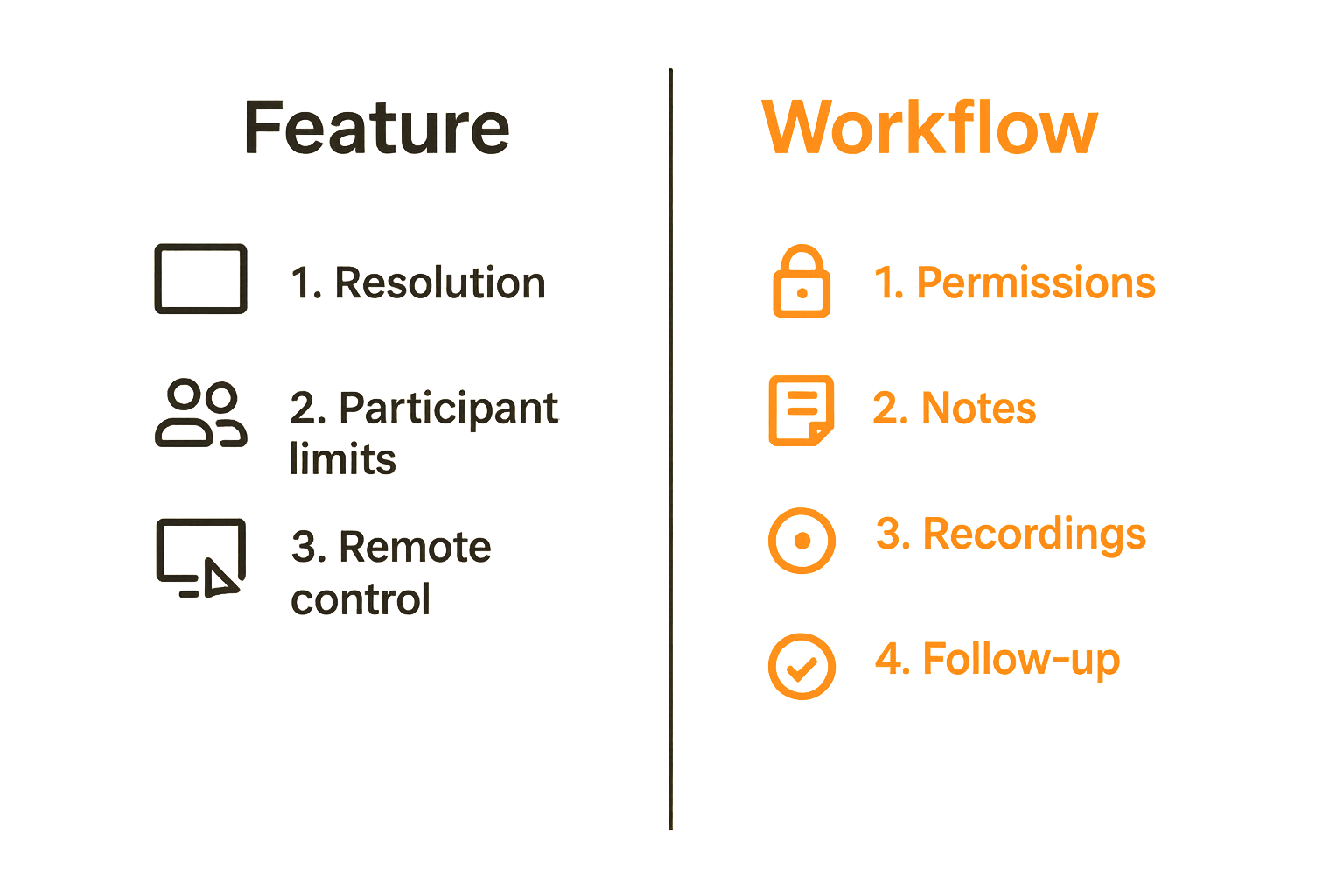
The mistake teams make is treating screen sharing as a checkbox in a video meeting product. They compare resolution, participant limits, and whether remote control exists. Those details matter, but they are not enough.
A useful way to think about it is this: screen sharing is the visible layer of a larger collaboration system. Underneath it are permissions, identity, device access, network conditions, guest access, compliance rules, notes, recordings, follow-up tasks, and support ownership.
If the workflow is loose, the tool gets blamed for problems it cannot solve alone. A customer joins late and nobody knows who can grant access. A recording exists but is stored under the wrong account. A teammate takes remote control without confirming consent. A prospect sees a private Slack message because the presenter shared the full desktop instead of one window.
Practical rule: Do not buy screen sharing business software only for the best live session. Buy for the full lifecycle before, during, and after the session.
This is why software selection has to start with operating reality. A five-person consulting firm, a SaaS support desk, and a 200-person remote company may all need screen sharing, but they need different guardrails.
Where screen sharing creates leverage
Screen sharing is valuable because it reduces translation loss. Instead of describing a workflow, someone shows it. Instead of guessing what the customer sees, support watches the error happen. Instead of writing a long internal explanation, a manager walks through the dashboard.
The highest-leverage use cases usually fall into four buckets:
- Sales demos where the buyer needs to see a product, report, configuration, or proof of value.
- Customer support where the agent needs visual context and sometimes remote control.
- Onboarding and training where the goal is repeatable education.
- Internal operations where teams need to debug, review, approve, or teach faster.
The tool should reduce friction in those situations. It should not create a second workflow that people have to manage manually.
Map the jobs before comparing tools
Internal collaboration has different needs
Internal screen sharing is usually about speed. Teammates know each other, share identity systems, and operate under the same security policy. The workflow can be lighter because trust is higher.
For internal collaboration, look closely at:
- How quickly a teammate can start sharing from chat, calendar, or project management tools.
- Whether participants can annotate, request control, or switch presenters without restarting.
- Whether the tool performs well with multiple monitors and high-resolution dashboards.
- Whether recordings can be saved to the right project, workspace, or knowledge base.
What breaks in practice is context switching. If a team has to open a separate app, generate a link, paste it into chat, wait for permissions, and then summarize the discussion somewhere else, screen sharing becomes slower than the problem it was supposed to solve.
Customer-facing sessions raise the stakes
Customer-facing sessions are different. The guest may not want to install anything. Their device may be locked down by IT. They may be sharing sensitive customer data. They may need reassurance before allowing remote control.
That means your evaluation should include the guest experience, not just the host experience. Test how a buyer, client, or customer joins from a locked-down browser. Test whether the invitation makes sense to a non-technical person. Test how consent is requested and revoked.
The team at pairux.com works on collaborative screen sharing and remote control workflows, and one pattern is consistent across remote teams: the best session tools make trust visible, not implied.
For customer-facing workflows, the screen share must answer three questions clearly:
- Who can see what?
- Who can control what?
- What happens after the session ends?
If those answers are vague, you will eventually run into a support escalation, a security concern, or a customer experience problem.
The architecture behind a reliable screen sharing workflow
Session state matters more than the button
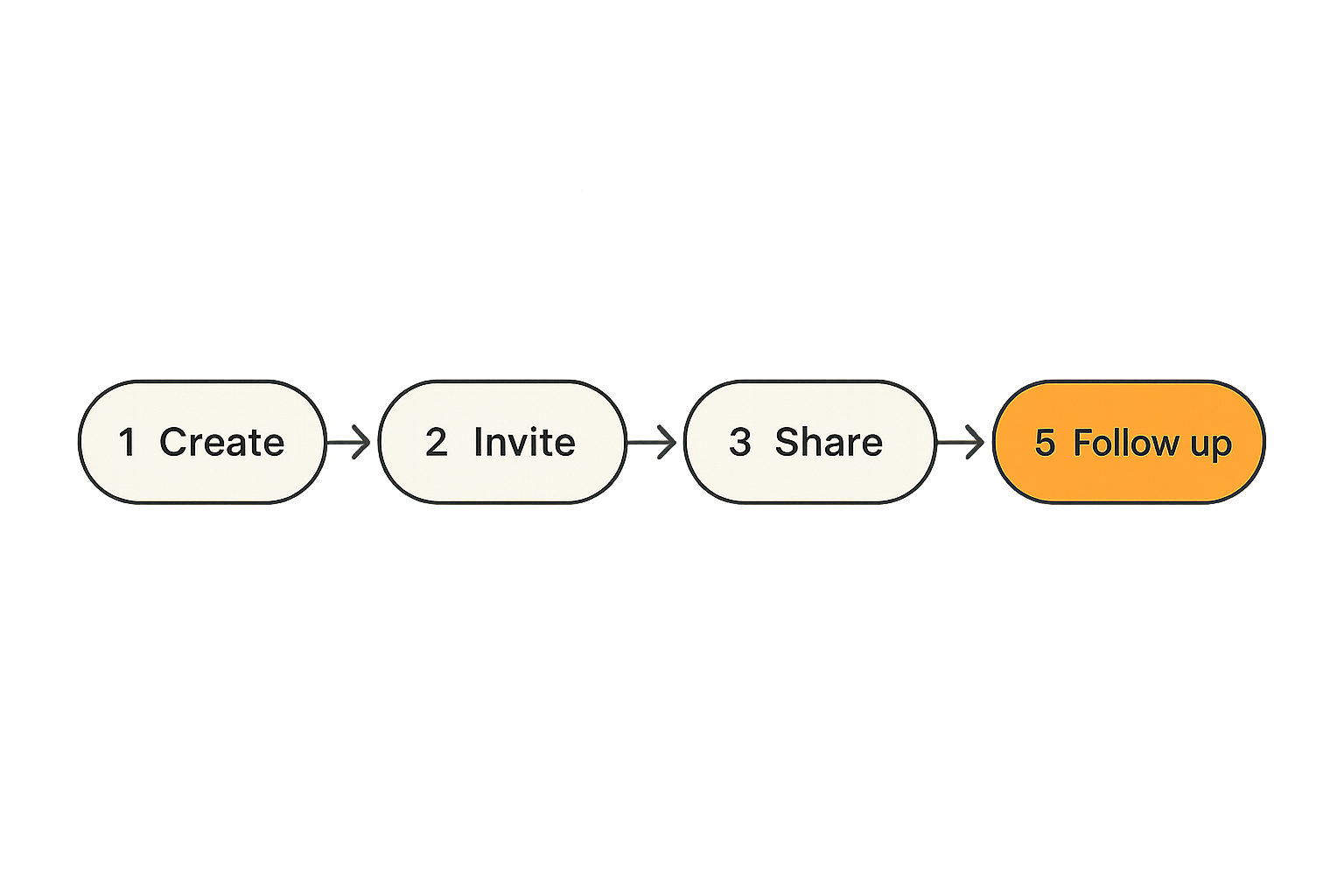
Screen sharing has state. A session starts, people join, permissions change, someone presents, remote control is requested, the session is recorded, files or links may be exchanged, and the session ends. Each state needs a predictable rule.
A simple session model looks like this:
- Create the session with a clear owner.
- Invite the right participants with the right access level.
- Start sharing only the required window, tab, or screen.
- Grant remote control only after explicit consent.
- Capture notes, recording, decisions, and next actions.
- Close the session and remove temporary access.
This may sound basic, but many teams skip it. They rely on personal habits. One employee records everything. Another records nothing. One support agent asks for consent verbally. Another assumes permission because the customer clicked a link.
Practical rule: If two employees run the same customer screen share in completely different ways, you do not have a workflow. You have tool usage.
The practical question is whether the software helps enforce the workflow or whether managers have to chase behavior manually.
Remote control needs explicit boundaries
Remote control is useful and risky. It can shorten support time dramatically, especially when customers are stuck in settings, forms, permissions, or complex software flows. It can also create confusion if the customer does not know who is moving the cursor or what is being changed.
Good remote control behavior is boring and explicit:
- The customer initiates or approves the control handoff.
- The interface shows who currently has control.
- Control can be revoked immediately by the customer.
- The agent explains before changing settings, deleting data, or submitting forms.
- Sensitive fields are avoided or masked where possible.
For business software, remote control should never feel like a hidden power. It should feel like a temporary, visible, revocable permission.
Security expectations for screen sharing business software
Access control should match the meeting risk
Security in screen sharing business software is not only about encryption. It is also about who can initiate sessions, who can invite guests, who can record, who can take control, and where artifacts go afterward.
Different meeting types deserve different rules:
| Session type | Typical risk | Recommended controls |
|---|---|---|
| Internal team huddle | Low to medium | Workspace login, host control, optional recording |
| Sales demo | Medium | Guest link controls, waiting room, limited sharing scope |
| Customer support | Medium to high | Consent prompts, remote control logs, careful recording policy |
| Finance or legal review | High | Restricted participants, no casual recording, strong access review |
| Admin troubleshooting | High | Named users, audit trail, least-privilege control |
The mistake teams make is applying one policy to every session. That creates either too much friction for simple internal collaboration or too little control for sensitive work.
Recordings and audit trails need ownership
Recordings are not automatically useful. They are also not automatically safe. A recording can contain customer data, internal strategy, API keys, private messages, or personal information. If recordings are scattered across personal accounts, nobody really owns the risk.
A workable recording policy should define:
- Which sessions are recorded by default.
- Which sessions require explicit approval.
- Where recordings are stored.
- How long recordings are retained.
- Who can search, download, or share them.
- How recordings are deleted when no longer needed.
Practical rule: If you cannot explain where a recording lives and who can access it, do not create the recording by default.
Audit trails matter most when remote control is involved. Teams do not always need a forensic-grade log, but they do need enough context to answer customer questions later. Who hosted the session? When did it happen? Was remote control used? Was a recording created? Where is the follow-up ticket?
What breaks when implementation is sloppy
The tool works but the process fails
Many screen sharing failures are not technical outages. The tool works. The process does not.
Common failure modes include:
- Presenters share the wrong screen because window sharing is not standard practice.
- Guests cannot join because browser permissions are not tested.
- Remote control is available but nobody knows when it is appropriate.
- Recordings are saved under individual accounts and leave with employees.
- Meeting notes never make it back to the CRM, ticket, or project board.
- Admins add every user as a host because role design was skipped.
This is why buying more software rarely fixes an unclear workflow. It may even make the problem worse by creating parallel places where sessions can happen.
Support debt shows up later
Screen sharing creates support debt when sessions solve the immediate issue but do not improve the system. An agent helps a customer fix a configuration problem, but the knowledge never becomes a help article. A product manager watches a user struggle, but the insight never reaches the roadmap. A sales engineer answers the same setup question on ten demos, but nobody updates the onboarding flow.
The shared screen is a signal. If your team does not capture that signal, the same work repeats.
A lightweight follow-up template helps:
- What was the user trying to do?
- Where did they get stuck?
- Did we take control or only observe?
- What did we change?
- What should be updated in documentation, product, or process?
This turns screen sharing from a one-off rescue tool into a feedback loop.
How to evaluate screen sharing business software
Use practical evaluation scenarios
Do not evaluate tools by running a perfect meeting between two employees on fast office internet. That tells you almost nothing.
Instead, test realistic scenarios:
- A prospect joins a demo from a browser without installing an app.
- A support customer shares a screen from a locked-down company laptop.
- A teammate switches from one presenter to another during a technical review.
- A customer grants remote control, revokes it, and grants it again.
- A recording is saved, renamed, shared, searched, and deleted.
- A follow-up task is created in the right system of record.
This is where teams discover the real differences. Some products feel polished in a simple call but become awkward with guests. Others are excellent for support but too heavy for everyday internal use.
Compare the operational tradeoffs
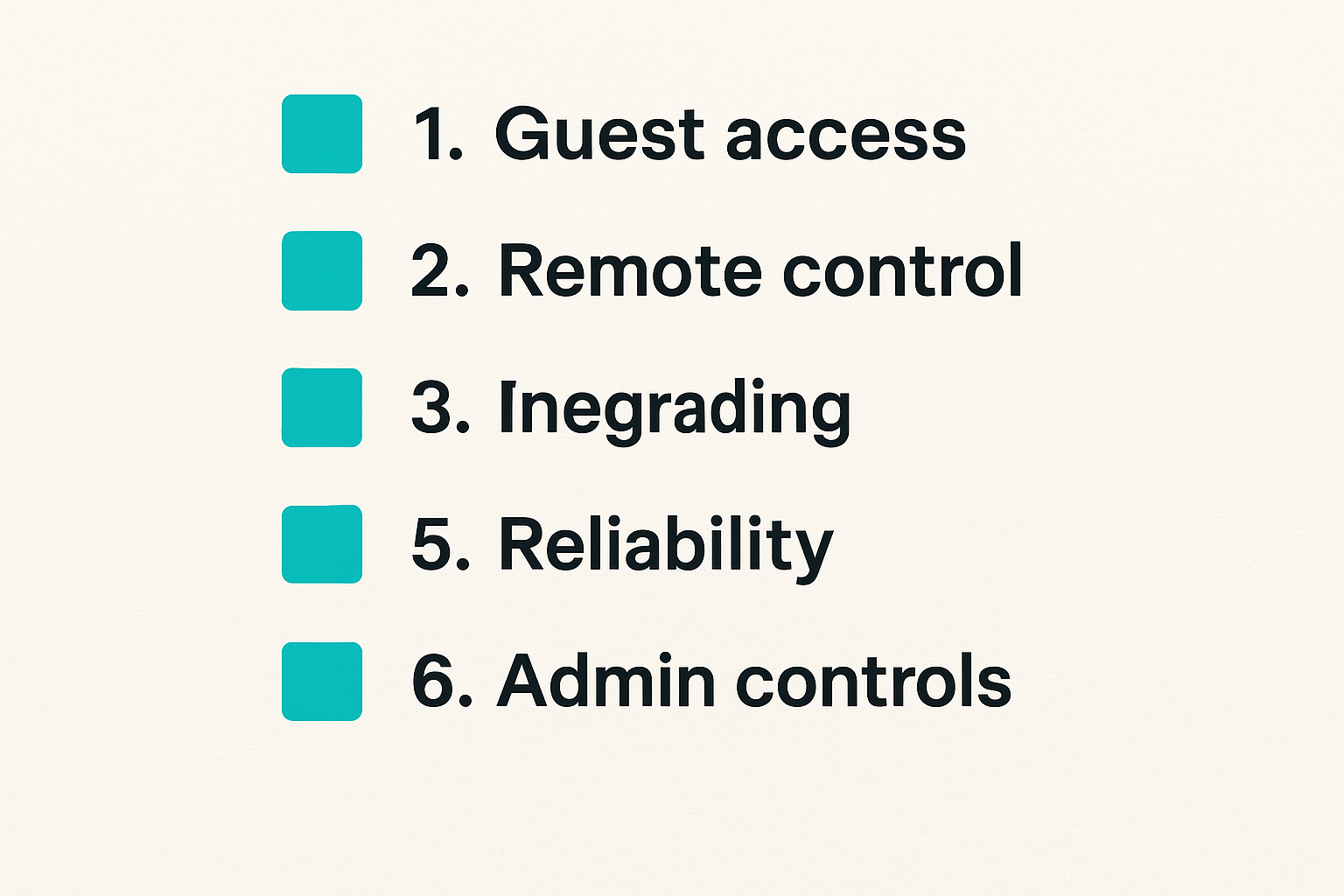
A useful comparison is not tool A versus tool B in the abstract. It is workflow fit versus operational cost.
| Evaluation area | What good looks like | Warning sign |
|---|---|---|
| Guest access | Join is simple and clear | Guest must install software for basic viewing |
| Remote control | Consent is visible and revocable | Control handoff feels vague |
| Admin controls | Roles match real use cases | Everyone becomes an admin or host |
| Recording | Storage and retention are governed | Recordings live in personal silos |
| Integrations | Notes and links reach the right workflow | Session context is manually copied |
| Reliability | Handles normal network variation | Quality collapses under common conditions |
| Supportability | IT can manage users and policies | Troubleshooting depends on tribal knowledge |
The best choice is rarely the product with the longest feature list. It is the product that fits the work your team actually repeats.
Implementation workflow for small business teams
Roll out by use case, not department
Small teams often roll out software by giving everyone access and hoping habits form. That is fast, but it creates inconsistent behavior.
A better implementation sequence is use-case driven:
- Pick the first two workflows, such as sales demos and customer support.
- Define who owns each workflow.
- Write the joining, sharing, remote control, recording, and follow-up rules.
- Configure roles and defaults to match those rules.
- Run five real sessions and review what broke.
- Adjust the policy before expanding to more teams.
- Train new users with examples, not a generic feature tour.
This sequence keeps the rollout small enough to manage but concrete enough to learn from real usage.
Write simple operating rules
Policies do not need to be long. They need to be clear at the moment of use.
For example:
- Sales demos: share only the browser window or product app, not the full desktop.
- Support sessions: ask before recording and before remote control.
- Internal reviews: record only when the output is useful for absent teammates.
- Sensitive sessions: no recording unless approved by the meeting owner.
- Follow-up: link the recording or notes to the customer record, ticket, or project.
Practical rule: Defaults beat reminders. Configure the tool so the safe workflow is the easy workflow.
If users must remember a long checklist every time, they will skip it during busy work. Good implementation makes the right behavior natural.
Integrations, recordings, and knowledge capture
Connect the session to the system of record
Screen sharing becomes more valuable when it connects to the rest of the software stack. For SaaS teams, that usually means CRM, help desk, project management, calendar, chat, identity provider, documentation, or customer success platform.
The goal is not integration for its own sake. The goal is to reduce lost context.
A sales demo should leave a note in the CRM. A support session should connect to the ticket. An onboarding session should attach to the customer account. An internal architecture review should link to the project or decision record.
Without that connection, the organization learns less than the individual who hosted the call.
Make recordings useful or do not keep them
Recording every session feels safe until the library becomes unsearchable. Then people stop using it, but the risk remains.
Useful recordings usually have three properties:
- They are named with customer, project, or topic context.
- They are stored where the relevant team already works.
- They have a summary, timestamp, transcript, or linked decision.
If your team cannot provide those basics, consider recording less. In many workflows, a structured note is more useful than a one-hour video nobody watches.
The practical question is not whether your screen sharing business software can record. It is whether your team can turn the recording into knowledge without creating a messy archive.
What works and what fails in production
What works
In production, the strongest screen sharing setups tend to share a few traits.
They have a small number of approved tools. They define when to use each one. They assign ownership for administration, security settings, and workflow design. They keep guest access simple. They make remote control explicit. They connect sessions to the records teams already use.
They also review real sessions. Not every call, but enough to see patterns. If customers struggle to join, fix the invite flow. If presenters keep exposing private information, change the sharing default. If support agents repeat the same fix, update documentation or product onboarding.
Screen sharing is not only collaboration. It is operational visibility.
What fails
What fails is unmanaged flexibility.
One team uses a meeting suite. Another uses a support tool. A third uses a browser extension. Recordings end up everywhere. Customers receive different instructions depending on who they talk to. Security reviews become painful because nobody can map how sessions actually happen.
This does not mean every company needs one tool for everything. Some teams legitimately need separate tools for meetings, support, webinars, and remote administration. But the boundaries must be intentional.
A simple rule helps: if a tool touches customers, sensitive data, or remote control, it needs an owner and a workflow. Otherwise, it is shadow infrastructure.
Choosing and improving your software stack in 2026
Where saasrow.com fits into the buying process
Choosing screen sharing business software in 2026 is really about choosing how your team collaborates under pressure. The market will keep adding AI summaries, better transcripts, smarter noise reduction, and tighter integrations. Those features can help, but they do not replace workflow design.
For SaaS buyers and productivity-focused teams, the useful buying process is straightforward:
- Start with the jobs your team repeats weekly.
- Separate internal collaboration from customer-facing support.
- Decide where remote control is allowed.
- Define recording and retention rules before rollout.
- Test with realistic guests, devices, and network conditions.
- Connect session output to your CRM, help desk, or project system.
- Review the workflow after real usage, not just during procurement.
This is the kind of practical comparison mindset saasrow.com is built to support: helping teams think clearly about software choices, productivity tradeoffs, and operational fit before they commit.
Screen sharing business software should make work easier to see, easier to solve, and easier to remember. If it only creates another meeting link, the workflow is not finished.
Try saasrow.com
For practical software guides, comparison thinking, and productivity-focused SaaS insights, Try saasrow.com.