

July 8, 2026
Remote Access Software in 2026: A Practical Workflow Guide for SaaS Buyers and Small Teams
A practical guide to remote access software for SaaS buyers and small teams: access models, security, rollout, support workflows, failure modes, and buying criteria.
A customer cannot install your app. A finance lead is locked out of a desktop file. A new hire needs help configuring a laptop that is not in the office. Someone says, just remote in.
That is usually where the trouble starts. Remote access software looks simple when the job is one person helping another person on a screen. In production, it becomes an operating system for trust, permissions, troubleshooting, auditability, and support handoffs.
Teams think the problem is choosing remote access software with the best feature list. The real problem is designing a safe access workflow that people will actually use under pressure.
That changes the conversation. The practical question is not only whether a tool can connect to a device. It is who can connect, under what conditions, with what approval, what gets logged, how sessions are handed off, and what happens when the tool becomes part of daily operations.
Table of contents
- Remote access software is a workflow, not a magic tunnel
- The access model: attended, unattended, and vendor sessions
- Security architecture before feature comparison
- Reliability and performance in the real workday
- Integration with SaaS operations and support workflows
- Buying criteria that actually predict adoption
- Implementation workflow for small business teams
- Common failure modes and what breaks in practice
- What works, what fails, and how to measure it
- Where saasrow.com fits and how to choose with less regret
Remote access software is a workflow, not a magic tunnel
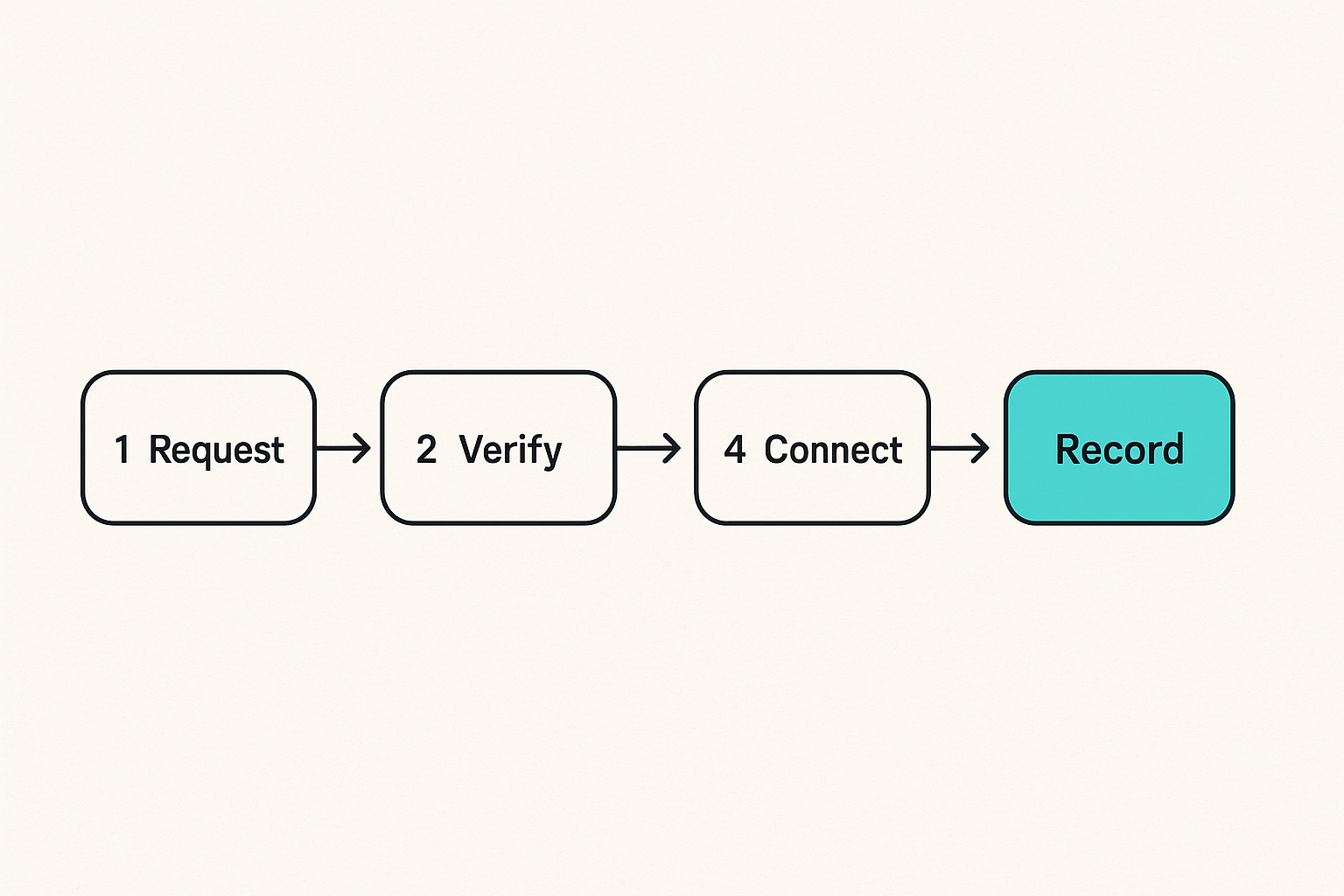
The screen is only the visible part
A useful way to think about remote access software is as a controlled exception to normal distance. Someone who is not physically present gets temporary power over a device, session, file, or environment. That power can be helpful. It can also be risky.
The screen is what everyone sees. Underneath it are identity checks, device posture, session permissions, file transfer rules, clipboard controls, recording policies, and support notes. If those parts are not designed, the tool quietly becomes a bypass around the controls you already rely on.
Practical rule: treat every remote session as a business event, not just a technical connection.
That does not mean every session needs heavyweight approval. It means the access path should match the risk of the work.
Why buyers get fooled by demo simplicity
Remote access demos are usually clean. One device connects to another. The cursor moves. The buyer nods. The mistake teams make is assuming the demo is the workflow.
In real use, the session starts inside a support ticket, a Slack thread, a customer call, an invoice deadline, or a security issue. Someone has to verify the user, obtain consent, avoid exposing private data, solve the issue, document the change, and close the loop.
Demo simplicity is useful, but it is incomplete. The tool that feels fastest in a demo may become messy if it lacks policy controls, team roles, audit logs, or sane deployment options.
The decision belongs to operations, not only IT
Remote access software is often purchased by IT, but the consequences land across operations. Support teams use it to reduce back-and-forth. Finance uses it when a local desktop process breaks. Founders use it when a remote hire is blocked. Contractors may need it for narrow tasks.
If only IT evaluates the tool, adoption can fail because the day-to-day users were not represented. If only support evaluates it, security can be underdesigned. The better path is a small buying group: IT or ops, one frequent support user, one security-minded owner, and someone accountable for budget.
That changes the conversation from which tool has more features to which workflow can survive real usage.
The access model: attended, unattended, and vendor sessions
Attended access for support and collaboration
Attended access means the person on the remote device is present and grants permission. This fits customer support, employee helpdesk, onboarding, and troubleshooting. It is usually lower risk because consent is immediate and visible.
But attended does not mean casual. Teams still need rules for what support staff can do during a session. Can they transfer files? Can they copy passwords? Can they reboot? Can they reconnect automatically after reboot? Can they see multiple monitors?
The practical question is whether the user understands what is happening. Consent prompts, visible session banners, and clear termination controls reduce confusion.
Unattended access for managed machines
Unattended access is different. It lets authorized users connect to a machine when no one is sitting there. This is useful for servers, office desktops, point-of-sale devices, lab machines, or managed employee laptops.
It is also where risk increases. An unattended access agent can become a standing doorway into the business. If credentials are weak, roles are broad, or devices are not inventoried, the organization loses track of who can reach what.
Practical rule: unattended access should be tied to named users, managed devices, and explicit ownership. If nobody owns the device record, nobody should own silent access to it.
Vendor and contractor access without permanent trust
Vendors often need access for implementation, support, or maintenance. The mistake teams make is giving a contractor the same persistent access as an employee because it is faster than building a temporary path.
Use time-bounded access where possible. Require approval for sensitive devices. Disable accounts automatically when the work ends. Keep a record of the business reason for each session.
This is not bureaucracy for its own sake. Vendor access is one of the easiest places for old trust to accumulate. Three months later, nobody remembers why the account exists, but the account still works.
Security architecture before feature comparison
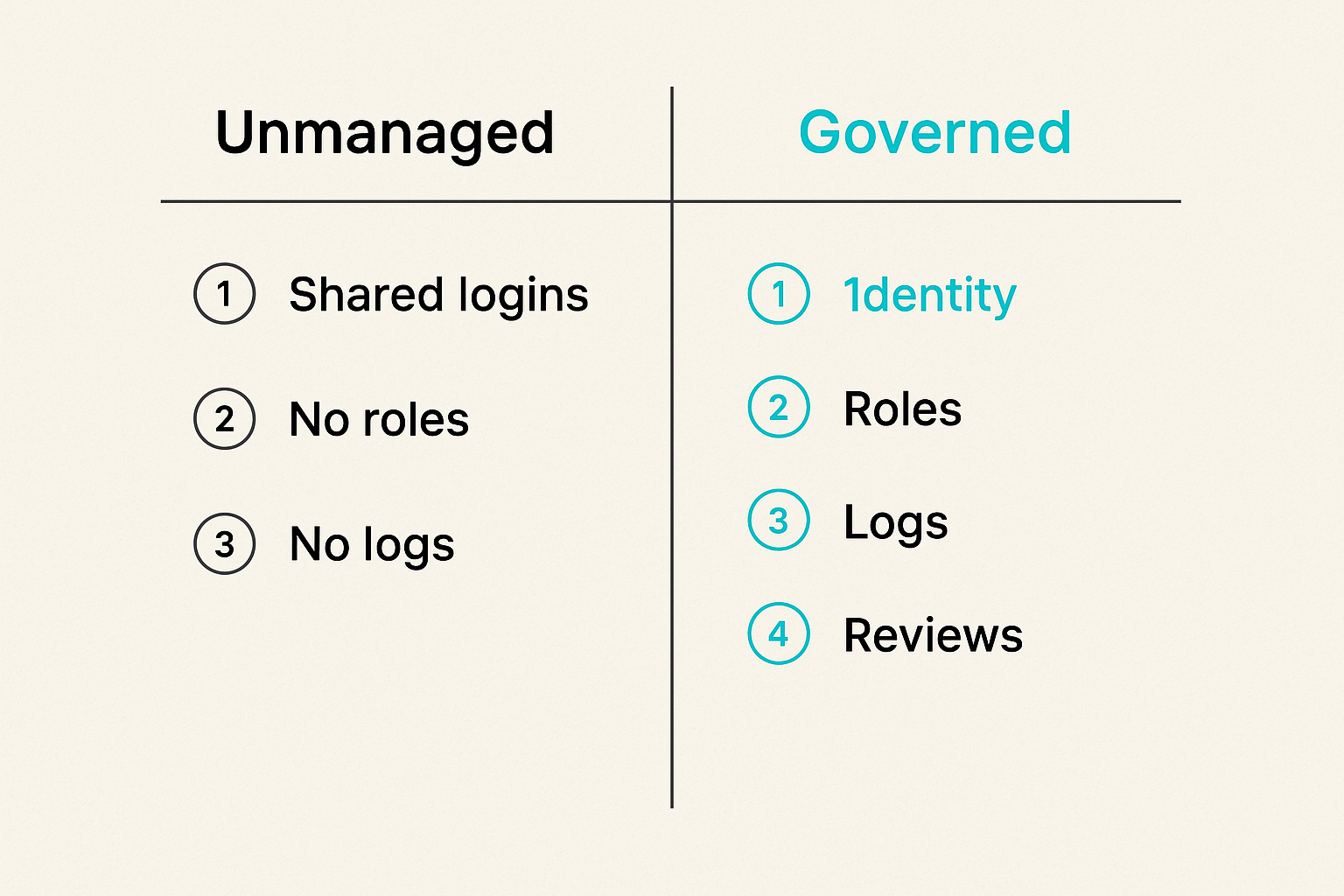
Identity is the control plane
The remote access tool should not become a separate identity island. If your team already uses single sign-on, multi-factor authentication, directory groups, or role-based access, remote access should fit that model.
At minimum, avoid shared logins. Shared technician accounts destroy accountability. If something changes during a session, you need to know which person performed the action, not only which team had access.
Security architecture starts with a simple map: users, roles, device groups, access types, approval requirements, and logging. A small team can do this in a spreadsheet. The important part is not the format. It is the decision-making.
Session logging is not optional
Logs are boring until something goes wrong. Then they become the only thing that matters.
A remote access software rollout should answer basic questions before the first production session: who connected, to which device, when, from where, for how long, and what actions were allowed. If the tool supports session recording, decide when recording is required and who can view recordings.
Do not collect logs nobody will review. Instead, define lightweight review points. For example, review privileged sessions weekly, vendor sessions after completion, and failed login attempts when they spike.
Least privilege beats shared technician accounts
Least privilege sounds like security jargon, but it is operationally practical. A support agent helping with browser settings does not need access to finance machines. A contractor updating one system does not need every device group.
Use separate roles for helpdesk, administrators, vendors, auditors, and managers. Limit file transfer and clipboard sharing where sensitive data is involved. Require stronger approval for unattended access than for attended support.
The point is not to slow down work. The point is to keep ordinary support from becoming extraordinary access by accident.
Reliability and performance in the real workday
Latency matters when support is already tense
When a user asks for help, they are usually already blocked. A laggy remote session makes the situation worse. The technician misclicks. The user loses confidence. The support call drags on.
Performance requirements depend on the workflow. Basic admin support can tolerate some delay. Design, video, engineering, or data-heavy work may need stronger performance. Multi-monitor support, keyboard mapping, audio routing, and high-DPI displays matter more than buyers expect.
Do not evaluate reliability only from the office network. Test from home Wi-Fi, mobile hotspots, hotel networks, and locked-down customer environments.
Connection recovery is a business feature
Reboots are common during support. Network drops happen. VPNs fail. Users close laptops. What breaks in practice is not the first connection; it is the recovery path.
A good remote access workflow handles reconnects cleanly. The technician should know whether the device is coming back. The user should know whether the session is still active. If elevated permissions are needed after reboot, the process should be clear.
This is why connection recovery is not a minor technical feature. It determines whether a ten-minute fix becomes a one-hour support chain.
Mobile, browser, and locked-down environments
Many small teams support a messy mix of devices. Some users work from browser-only environments. Some use tablets. Some have corporate controls that block installers. Some customers cannot install agents for compliance reasons.
Before buying, test the deployment paths: browser session, temporary app, persistent agent, mobile support, admin install, and restricted user install. Each path has different friction.
Related reading from our network: teams that run remote meetings face similar workflow tradeoffs in Zoom video chat for remote teams, where the call itself is only one part of the operating system.
Integration with SaaS operations and support workflows
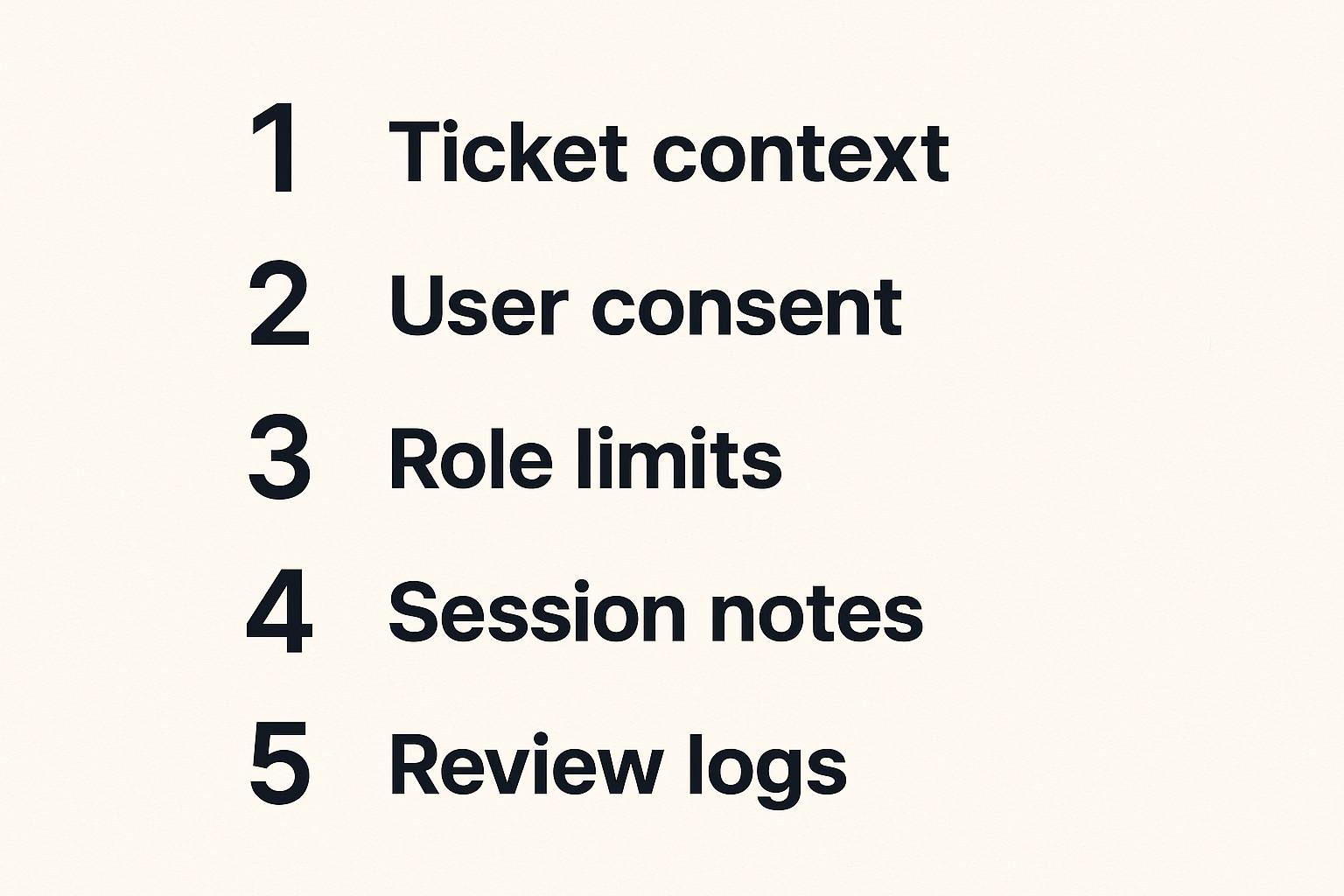
Tickets need session context
Remote access should not live outside your support system. If a technician starts from a ticket, the session details should be easy to attach to that ticket. If not through a native integration, then through a consistent note format.
A useful session note includes the reason for access, user consent, device, actions taken, files changed or transferred, unresolved risks, and follow-up owner. This creates continuity when another person picks up the issue later.
The mistake teams make is solving the immediate problem while losing the operating record. That feels fast today and expensive next month.
Screen sharing and remote control are related, not identical
Screen sharing lets people look together. Remote control lets one person act on another environment. The difference matters.
For sales demos, onboarding, and collaborative review, screen sharing may be enough. For support, device administration, or configuration, remote control may be necessary. Blurring the two leads to bad policy. A meeting tool with remote control is not always a managed remote access platform.
If your team is comparing collaboration tools alongside remote control, the workflow lens in screen sharing business software is useful because it separates meetings, control, security, and rollout instead of treating them as one feature bucket.
Finance, tax, and regulated workflows raise the bar
Remote access becomes more sensitive when it touches payroll, tax records, customer data, contracts, or financial systems. A support person may only be fixing a printer or updating a browser, but the visible desktop can expose confidential information.
For finance-heavy workflows, use attended access when possible, mask or close sensitive windows, limit file transfer, and document the business reason. The same ownership discipline that applies to TurboTax software for small business workflows applies here: records, review gates, and accountability matter more than tool convenience.
Buying criteria that actually predict adoption
Compare workflows, not logo grids
Most comparison pages make every tool look capable. The better evaluation method is to run realistic scenarios.
| Buying question | Weak evaluation | Strong evaluation |
|---|---|---|
| Support access | Does it connect? | Can support start, document, and close a session from a real ticket? |
| Security | Does it offer MFA? | Can roles, device groups, logs, and vendor access match policy? |
| Reliability | Was the demo smooth? | Does it recover after reboot, bad Wi-Fi, and restricted installs? |
| Adoption | Is the UI modern? | Can non-technical users grant access without confusion? |
| Cost | Is the monthly price low? | Does pricing match technician count, devices, and session volume? |
The practical question is not which vendor has the longest checklist. It is which tool creates the fewest exceptions.
Pricing should match access patterns
Remote access pricing can be based on technicians, endpoints, concurrent sessions, device groups, enterprise controls, or support volume. A plan that looks cheap can become expensive if your access pattern does not match the model.
A small support team with many devices may prefer endpoint-friendly pricing. A business with many occasional helpers may care more about named user costs. A team with external vendors should check whether temporary users are easy to manage.
Do not buy only for today. Buy for the next access pattern you can already see: more remote hires, more customers, more devices, or more compliance pressure.
Supportability is part of the product
Every remote access tool eventually needs support itself. Agents fail to update. Permissions conflict. Users cannot find prompts. Firewalls block connections. Billing plans change.
Evaluate documentation, admin controls, deployment guides, and vendor responsiveness. Ask how updates are handled. Ask whether old agents can linger. Ask what happens when a device is stolen or an employee leaves.
Related reading from our network: founders selling software or digital products run into similar support and delivery loops, which is why this guide to selling digital products as a practical system is a useful adjacent read.
Implementation workflow for small business teams
Step 1: map the access cases
Start by listing the situations where remote access is needed. Keep it concrete.
- Employee laptop support.
- Customer onboarding assistance.
- Contractor maintenance.
- Finance or admin desktop troubleshooting.
- Server or shared workstation access.
- Emergency access when a key person is unavailable.
For each case, define whether access is attended or unattended, who can initiate it, who approves it, what data may be visible, and what must be logged.
Practical rule: if you cannot name the access case, do not create a permanent access path for it.
Step 2: define roles and approval paths
Turn the map into roles. Avoid starting with individual names. Start with job functions.
A simple small-business model might include helpdesk user, device admin, finance support approver, vendor temporary user, and audit viewer. Each role should have clear limits.
Then define approval paths. Low-risk attended support may need only user consent. Unattended access to finance machines may require manager approval. Vendor access may require an end date before the account is created.
This is where remote access software becomes operational instead of improvised.
Step 3: pilot, train, and review logs
Run a short pilot with real cases. Do not pilot only with technical users. Include someone who is likely to be confused by prompts, permissions, or session banners.
After the pilot, review session logs and support notes. Did people document the reason for access? Were any sessions longer than expected? Did users understand how to end a session? Did the technician need permissions they should not normally have?
Training does not need to be heavy. A one-page internal guide is often enough: when to use the tool, how to request access, what not to do, and who owns exceptions.
Common failure modes and what breaks in practice
Always-on access with no owner
The most common failure is silent accumulation. Devices get added. Agents remain installed. Contractors finish projects. Employees change roles. Nobody reviews access.
Six months later, the team has always-on access scattered across machines with unclear ownership. That is not a remote support system. It is an unmanaged trust network.
Fix this with quarterly access review, device ownership fields, automatic vendor expiration, and offboarding checklists. If a device does not have a business owner, it should not have persistent remote access.
Tool sprawl across departments
Support uses one remote access tool. Sales uses a meeting platform with control. Engineering uses a separate tunnel. Finance has a legacy desktop support app. Each team believes it is moving fast.
What breaks in practice is visibility. No one knows all the access paths. Security policy becomes theoretical. Users receive different prompts from different tools and stop paying attention.
Standardization does not mean one tool for every edge case. It means known tools, known owners, and known exceptions.
No incident plan for remote sessions
If suspicious activity happens through a remote access tool, who responds? Can you disable all sessions quickly? Can you identify affected devices? Can you export logs? Can you revoke vendor access without breaking employee support?
Many teams do not answer these questions until the incident. That is too late.
Remote access software should be included in your incident plan. Document emergency disablement, account revocation, log review, device isolation, and user communication. Even a simple plan is better than a panic thread.
Related reading from our network: local groups face a softer version of the same ownership problem when tools accumulate without clear responsibility, as described in this guide to community building software for local groups.
What works, what fails, and how to measure it
What works in durable deployments
Durable deployments are boring in the best way. People know when to use the tool. Users can grant access without anxiety. Technicians have enough permission to solve issues, but not broad access by default. Sessions are logged. Vendors expire. Reviews happen.
What works is not exotic:
- Named users instead of shared accounts.
- SSO and MFA where available.
- Separate roles for support, admins, and vendors.
- Device inventory tied to ownership.
- Clear rules for attended and unattended access.
- Ticket notes that explain what changed.
- Regular access review.
These practices reduce drama. That is the point.
What fails after the first month
The first month often looks good because everyone is paying attention. After that, shortcuts appear.
People share credentials because someone is out. A vendor account remains active because nobody set an end date. A new device is added without an owner. Session notes become vague. The team starts using a second tool because one edge case was annoying.
The fix is not more policy language. The fix is designing the workflow so the easy path is also the correct path.
Useful metrics without pretending everything is a dashboard
Measure enough to see whether the tool is helping. Do not build a fake analytics program around it.
Useful metrics include average time to start a support session, first-session resolution rate, number of unattended devices, number of vendor accounts, sessions without ticket references, failed login attempts, and overdue access reviews.
For financial or tax-adjacent processes, records matter. The broader workflow guidance in TurboTax software in 2026 is relevant because remote troubleshooting can affect the same underlying evidence trail: who changed what, when, and why.
Where saasrow.com fits and how to choose with less regret
Use comparison content to pressure-test your shortlist
saasrow.com is built for readers who want practical articles, guides, and insights about software and productivity. For remote access software, that means comparing tools by workflow fit instead of buying the most familiar logo.
Use guides like this to build a shortlist, then pressure-test each vendor with real scenarios. Ask your team to run the same support case across tools. Include a restricted device, a non-technical user, a reboot, a vendor session, and a documentation handoff.
A tool that survives those tests is more valuable than one that only wins a feature table.
Remote access software should make work calmer
The best remote access software makes support calmer, not more mysterious. It shortens investigation time. It reduces repeated instructions. It gives users confidence that help is controlled. It gives operators enough visibility to manage risk.
The closing test is simple: after implementation, do people know who can access what, how sessions start, how access ends, and where the record lives? If yes, the tool is becoming part of the operating system. If no, it is just another shortcut with a monthly bill.
Remote access software is not only a way to reach a screen. It is a decision about trust, workflow, and ownership.
Try saasrow.com
For practical articles, guides, and insights about software and productivity, visit Try saasrow.com.